Server Backup (Disk-Level)
Server backup of Vinchin Backup & Recovery allows customers to take backups of entire Linux and Windows server’s operating system, specific disk(s) or specific volume(s) of the physical server.
Before creating a server backup (disk-level) job, make sure you had installed the physical backup agents on the target Linux or Windows servers.
Create Server Backup (Disk-Level) Job
To create server backup jobs, please go to CDP > Server Backup (Disk-Level) page. There are 4 steps to create a server backup (disk-level) job.
Step 1: Backup Source
Select the hosts you want to backup from the Group tree, expand the group until you see the hosts. Select the host(s) you need to back up.
Click on the selected host(s), you can select or exclude the partition(s) or disk(s) from this backup job by unticking the front check box of the partition(s) or disk(s). And you can select the database within the server which need to be monitored for the job.
Check association: When enabled, checking a certain hard disk will simultaneously check its associated hard disks (such as RAID groups).
Step 2: Backup Destination
On the Backup Destination page, you need to specify a backup storage to save your backup data.
Target storage: By default, it select the storage device with larger available space under all nodes. You can customize the storage device according to your needs.
Target Node: It will be automatically associated after the storage device has been selected.
When done selecting the backup storage, please click on Next button to continue.
Step 3: Backup Strategies
General Strategy
You can setup the Cache Flushing, Throttling Policy, Data Storage Policy and Retention Policy.
Click Add Flushing add time schedule, configure the time policy to trigger the file system and database applications to execute a cache flushing to create a system consistency point.
For the throttling policy settings, it’s optional, only the highly efficient backup process will impact on the server performance, you can choose to configure the throttling policy to limit the backup speed.
Data Storage Policy including Data Compression and Data Encryption of the backup data.
By enabling Data Compression, you can compress backup data in specified block size.
By enabling Data Encryption, the backup data will be encrypted and then stored into the backup storage. A password needs to be specified to secure the data encryption, when creating a server restore job, password verification is required to perform server restore.
For the Retention Policy, you can select a max rollback days, the earlist backup data exceeding the specified dats will be deleted automatically.
Transmission Strategy
For Transmission Network, you can select a network to carry out the data transmission.
By enabling Encrypted Transfer, the transmission path between the physical server and Vinchin backup server will be encrypted to guarantee you data safety during backup process.
By enabling Source Side Compression, before transmission, compressing the backup data blocks according to the specified data blocks can help reduce the occupation of network bandwidth.
For Transfer Threads, you can define 1 to 8 transfer threads for a single server backup job to implement multithreaded transmission.
Packet Size is recommend to set based on network bandwidth, the two are in a direct proportional relationship.
Emergency Takeover
After emergency takeover, configure the takeover standby machine and monitored applications. Takeover methods include Embedded DR Lab and server takeover.Choose the appropriate takeover type based on actual needs.
Embedded DR Lab: Use the disaster recovery drill platform as a standby machine, configure virtual standby machine computing resources and network resources based on the main machine's resource configuration. Need configure the standby vm manually and select the malware scan method.
Server takeover: Use the agent client as a standby machine, prepare the same operating system as the main server, and install the same application software and backup plugins as the main server.
By enabling Malware Scan, it will scan virus on backup data. You can configure virus scan strategy including scan thread and scan target.
By enabling Application Failover, the selected application will be taken over as the host trigger failover.
Automatic takeover, After detecting that the production host or application has triggered the takeover condition, automatically complete data, application, and IP switching on the standby machine to quickly resume business operations and ensure uninterrupted service. If fail continue longer than Heartbeat Failure Time, failover will be triggered, by enabling Application Monitoring the failover will start by monitoring application trigger condition.
Script configuration
During stage before backup, after backup, before takeover, after takeover you can manual input a script to execute, it's support shell script and bat script.
Advanced Strategy
Can select storage data block size manually and choose IO replication mode.
You can configure Skip bad block backup to skip bad sectors on the disk and Backup valid data to reduce the backup data size.
By enabling Resume from Breakpoint can automatically recover the job and perform data validation in case of obstructive failures.
Cache configutation can set agent file cache size and memory cache manually.
For Resource monitoring, set stop job threshold when remaining memory falls below the set threshold, job will pause continuous data protection.
When the source server is a Linux server, the resource monitoring configuration is as follow:
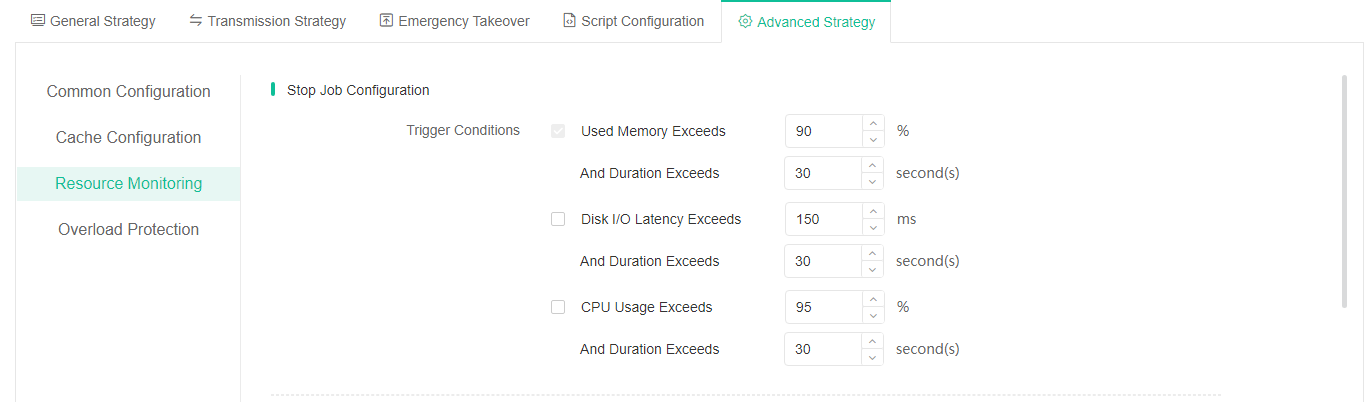
Stop Job Configuration: Server CDP job will be stopped if any condition of Used Memory, DiskI/O Latency or CPU Usage exceeds the set threshold. By default, only the Used Memory threshold is configured; disk I/O latency and CPU Usage must be selected to take effect.
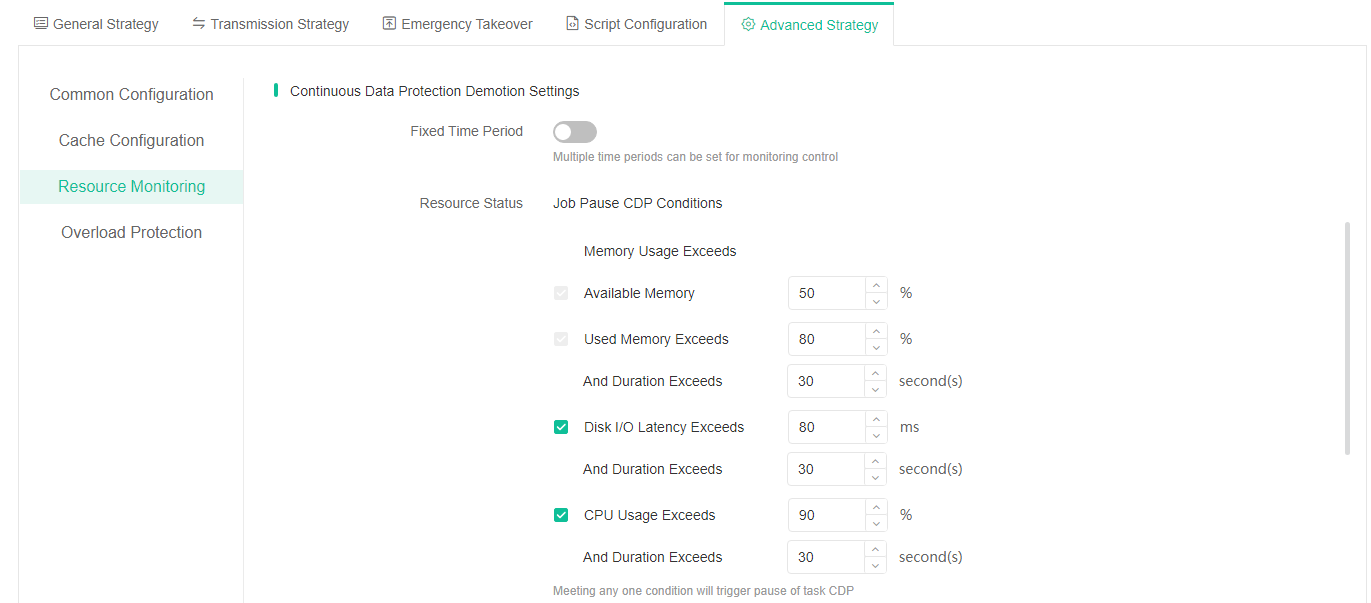
Continuous Data Protection Demotion Settings: Fixed time period: The job will pause CDP at the specified start time and automatically resume CDP after the preset duration.
Configure Job Pause CDP Conditions: When any of the following conditions—memory usage exceeding available memory, memory usage, disk I/O latency, or CPU usage—exceeds the set threshold, the CDP job will pause and degrade to incremental backup mode. By default, only the memory threshold need to be configured; disk I/O latency and CPU utilization must be selected to take effect.
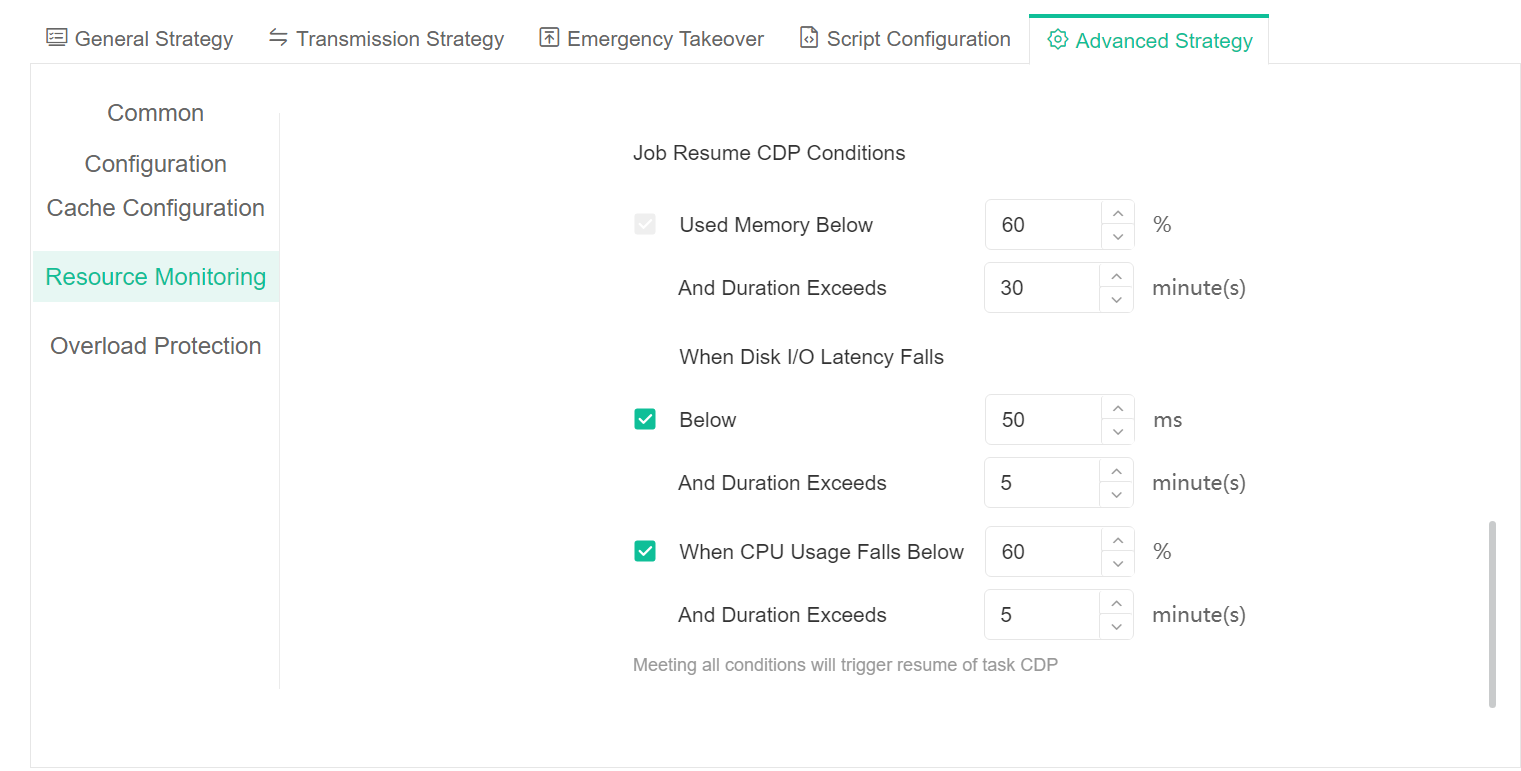
Configure Job Resume CDP Conditions: When any of the following conditions—memory usage, disk I/O latency, or CPU Usage—falls below the set threshold, the CDP Job will resume operation. By default, only the used memory threshold need to be configured; disk I/O latency and CPU usage must be selected to take effect.
For Overload Protection, you can enable Ignore Node Resource Limits to bypass the node's resource limitations.
Step 4: Review & Confirm
After completing the above-mentioned settings, you are able to review and confirm the settings in one screen. A job name can be specified for identification of the VM backup jobs, and by clicking on the Submit button to confirm the settings and create the backup job.